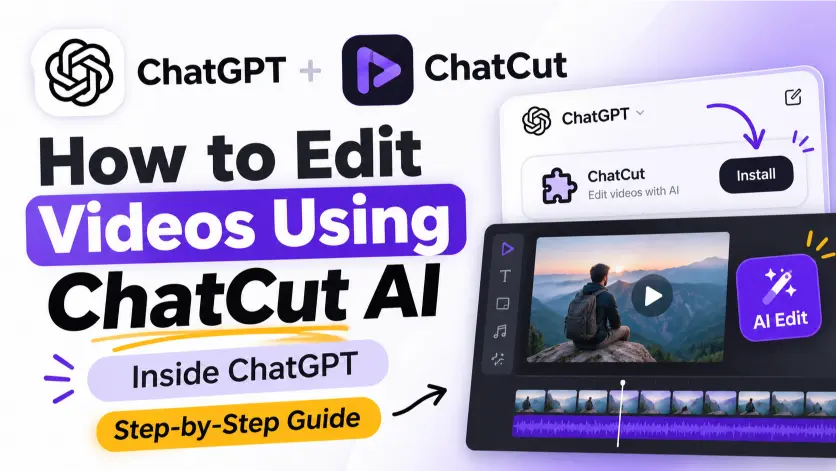

How to Edit Videos Using ChatCut
Follow these 9 simple steps to edit videos using the ChatCut plugin inside ChatGPT.
Install the Plugin
Open your ChatGPT desktop interface, navigate to the plugins section, search for ChatCut, and install it to authenticate your account.
Connect to Web
Once installed, use a command to connect the plugin to your ChatCut web account.
Start a Project
Create a new project by naming your edit, which will open the video editor interface.
Upload Footage
Import your raw video and audio files into the project.
Analyze Content
Prompt the AI to analyze your footage to identify key points, find a strong hook, and check for audio synchronization.
Generate a First Cut
Ask the AI to perform a clean edit by removing false starts, repeated takes, and tangents while keeping your natural speaking style.
Refine and Edit
Review the timeline and use natural language prompts to trim remaining gaps, adjust pacing, or request specific B-roll additions.
Add Motion Graphics
Use prompts to request visual elements, such as callouts or animated diagrams, to make the edit more engaging.
Export Your Video
Once satisfied, use the export feature to download your project, including the XML file, or share a public link to the timeline.