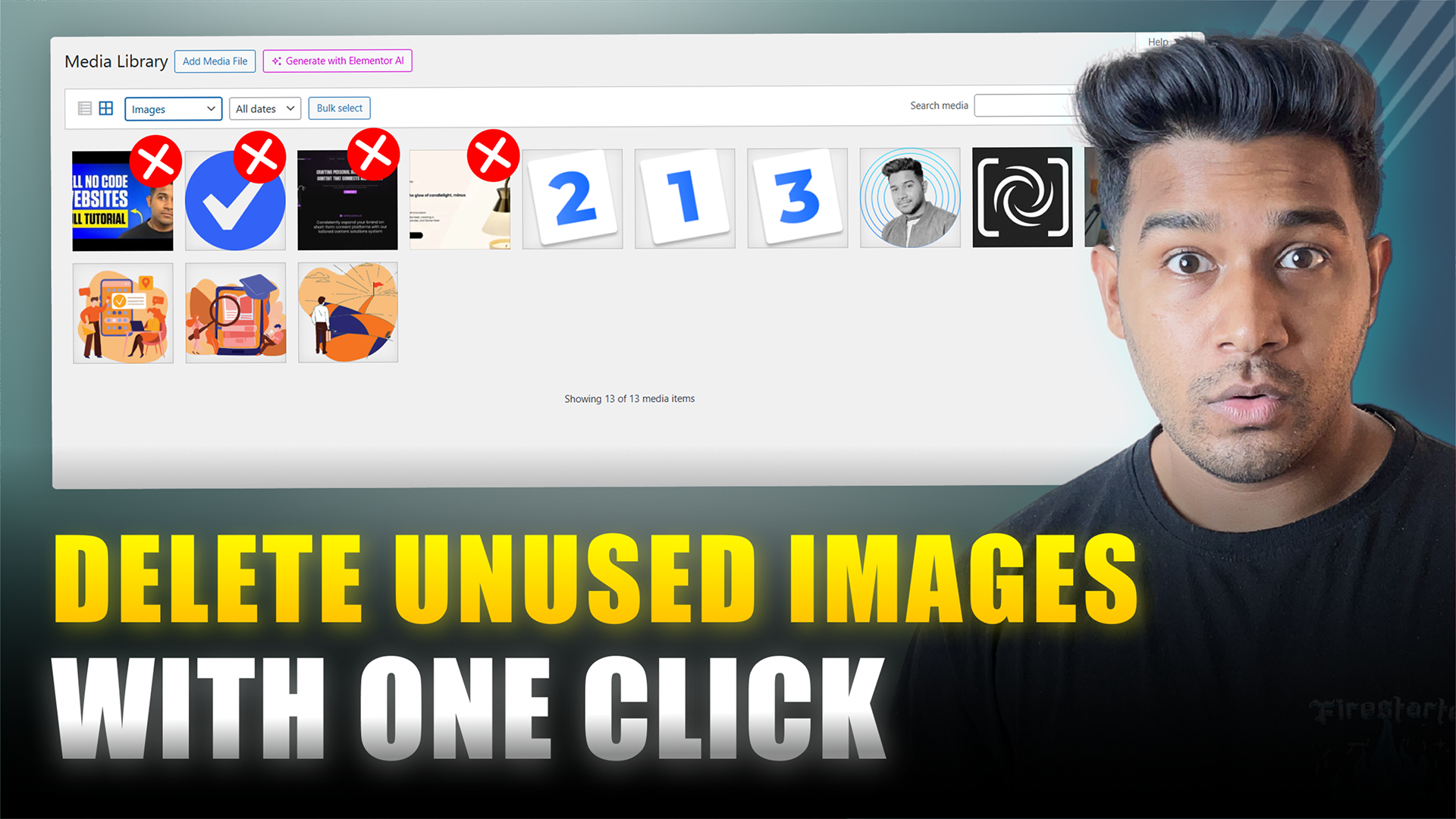

Ever wonder why your WordPress site feels a bit sluggish? A common, often overlooked culprit is a cluttered media library overflowing with unused images. Every photo, graphic, or GIF you upload, even if you never use it in a post or delete the post later, stays on your server, quietly eating up disk space and potentially slowing down your site. But what if you could clean house and boost your website performance with just a few clicks?
This guide will show you exactly how to identify and delete unused images in WordPress, helping you reclaim precious server space and improve your overall website speed. We’ll cover both a free and a more powerful premium solution, making your WordPress optimization journey a breeze!
The Silent Killer: Why Unused Images Harm Your Site’s Performance
Think of your WordPress media library as a digital closet. Over time, we throw in lots of “just in case” items that never get used. These digital hoarder habits can lead to:
- Slower Page Load Times: Your server has more files to sift through, making your site respond slower.
- Wasted Disk Space: This can impact your hosting costs or even lead to hitting storage limits.
- Sub-optimal SEO: Google favors fast-loading sites. A heavy media library can inadvertently hurt your search engine optimization.
Let’s illustrate with a simple example:
- Imagine you upload a great photo for a blog post – that one’s in use.
- Then, you upload several other variations, or maybe some graphics you decide not to use. These unused WordPress images are the ones we’re targeting.
Manually digging through hundreds or thousands of photos to find the forgotten ones? No thanks! Luckily, smart WordPress plugins come to the rescue.
Step 1: Discovering Unused Images with a Free WordPress Plugin
For anyone looking to get started with media library cleanup without spending a dime, a free plugin is an excellent first step.
- Fill the form to get plugin https://ayushmj.com/image-manager/
- Upload the plugin after downloading it
- Simply install and activate it just like any other WordPress plugin.
- Once it’s active, navigate to your Media Library. You’ll spot a new button, likely labeled something like “Mark Unused Images.” Give it a click!
- This clever tool then goes through your entire site, adding a distinct “delete” prefix to the filenames of all images it identifies as genuinely unused.
- Now, you can easily filter your media library by searching for “delete” to see all the images ready for removal.
A heads-up though: While this free solution is fantastic for identification, deleting these marked images still requires a bit of manual effort. You’ll need to select them individually and hit delete. If you’re dealing with a massive backlog of old images, this can still be quite time-consuming.
Step 2: The Power of Bulk Deletion with a Pro Plugin
If you’re serious about WordPress speed optimization and have a large number of redundant files, upgrading to a premium WordPress plugin for this task is a game-changer.
- A professional version offers a truly powerful, one-click solution for mass deletion.
- Before installing the Pro version, it’s a good practice to deactivate (and optionally delete) the free version to avoid conflicts. Then, proceed with installing and activating the premium plugin.
- Just like with the free tool, you’ll first click “Mark Unused Images” in your Media Library.
- Here’s the magic moment with the Pro version: You’ll now see a prominent button, something along the lines of “Delete All Unused Images.” One click, and poof – all your marked images are instantly gone!
- Don’t worry about accidentally deleting important files. These smart plugins are designed to only target images that are genuinely not linked to any posts, pages, or theme files, ensuring your active content remains safe and sound.
Crucial Advice: Always Back Up Your Website!
This can’t be stressed enough: Before you initiate any significant changes on your website, especially large-scale deletions or new plugin installations, always, always, always create a full backup of your WordPress site. This is the golden rule of website maintenance. A recent backup acts as your safety net, allowing you to easily restore your site if anything unexpected occurs.
Ready to Optimize Your WordPress Media Library?
Taking the time to clean up your media library is a simple yet incredibly effective step towards a faster, more efficient, and better-performing WordPress website. It’s a key part of good WordPress SEO and overall site health.
Ready to reclaim your disk space and boost your site’s speed? Find the free plugin in the WordPress plugin directory, or explore premium options for comprehensive image management and WordPress performance optimization. Your website (and your visitors) will thank you!