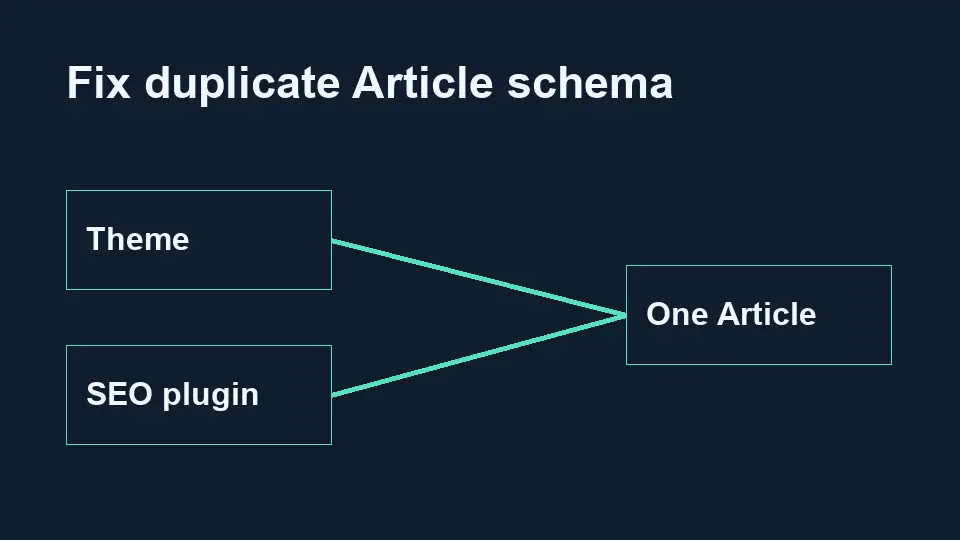

When a theme and an SEO plugin both describe the same blog post, you can end up with two Article records that disagree about the author, headline, or publication date. Start by identifying what each record describes and which component generates it. Then correct the conflicting output at its source.
1. Inspect the published HTML
Open one affected post in a private window and view its page source. Search for application/ld+json, then inspect each script and any @graph array for Article, BlogPosting, or NewsArticle nodes. Write down each node’s @id, headline, author, datePublished, and mainEntityOfPage. If a validator finds markup you cannot see in the original source, inspect the rendered page too.
2. Compare the entities before removing anything
A BreadcrumbList and a BlogPosting describe different things and can coexist. Even two fragments with the same @id may describe one entity. Look for independently generated Article records that describe the same post, especially if they give different facts.
Illustrative example: a theme emits a BlogPosting with a generic site byline, while the SEO plugin emits an Article for the same URL with the author shown on the page. Confirm which output reflects the visible byline, then trace where the other record originates.
3. Choose one source for the post’s Article data
On staging, check the SEO plugin’s post schema settings, theme documentation, and any custom snippets. Change one setting at a time and inspect the HTML after each change. If the SEO plugin supplies the correct Article data, use the theme’s documented option to remove its competing Article output when available. Preserve unrelated breadcrumb and organization records. Avoid editing parent theme files directly.
4. Validate and check related pages
Clear the relevant page and CDN caches, then fetch the affected URL again. Verify that the intended Article data matches the visible title, byline, dates, and image. Check a second post and a page with a different template to catch unintended changes. Google’s Rich Results Test checks supported result types. Schema Markup Validator helps inspect the broader vocabulary. Eligibility does not guarantee a rich result.
For initial setup, see the WordPress schema guide. If your site has conflicting output across multiple templates, get in touch about a structured data review.
References: Google’s Article documentation and structured data guidelines.